
In a previous blog post, I introduced you to the Asgaard clan and the reasons why Liv, Olaf, and Knut want to leverage Copilot to overcome their challenges with data analysis and visualization and become more efficient in their work.
We will continue our journey with the clan, delving deeper into Copilot for Power BI through a series of insightful blog posts. Join the Asgaard clan and me as we embark on an adventure towards wisdom and prosperity, starting with our first post that will guide you on how to enable Copilot for Power BI.
Before you can start playing with Copilot, there are 4 necessary prerequisites.

1. Licensing
Copilot for Power BI necessitates a Premium capacity of P1 or higher, or an equivalent capacity in Fabric, starting from F64 or above. Please note that Copilot functionality is not available with trial capacities.
Tip
To test Copilot like a true Viking, even if your treasure chest is not overflowing, you can use an F64 Pay-as-you-go capacity only for the duration of the test at a cost of less than $12 silver coins per hour in certain regions.
However, be sure to pause the capacity after the tests to avoid any unexpected raids on your treasure!

While it is not technically required to have a paid per-user license (Pro or Premium Per User) to use Copilot, the standard rules for sharing reports still apply. This means that if a Viking wants to share their report, they will need to have a paid license per user as well.
2. Region
Only regions that support Microsoft Fabric are available for using Copilot. The complete list of these regions can be found here. If Copilot is not supported in your primary region, you have the option to use a Fabric capacity in one of the supported regions to use Copilot.
3. Tenant settings
A Fabric administrator must activate the settings in the Fabric tenant.
There are potentially two settings that need to be activated.
Users can use a preview of Copilot and other features powered by Azure OpenAI
I believe the title is quite self-explanatory, as long as this setting is disabled, users cannot use Copilot in Fabric.
Data sent to Azure OpenAI can be processed outside your capacity’s geographic region, compliance boundary, or national cloud instance
The Azure OpenAI Service is currently only available in data centers located in the United States and Europe (France). If your capacity is located in a different region, you must enable this specific setting to allow your data to be processed—and not stored—outside of your capacity’s geographic region. No data will be stored as a result of this processing.
It’s important to know that for all European countries, keeping this feature disabled guarantees that your data remains within the European Union boundaries.
Tip
By using security groups, you can enable Copilot for specific members of the clan, rather than for everyone. This selective approach is an excellent way to begin experimenting with Copilot’s capabilities and to run Proof of Concepts, ensuring a tailored and controlled introduction of this tool within your tribe.
4. Power BI Desktop settings
The three criteria mentioned above already allow you to use Copilot for Power BI in the service. If you wish to use Copilot in the Desktop, you must also assign a workspace where the consumption of Capacity Units (CUs) can occur. This is done in the settings, under the Copilot (preview) tab.
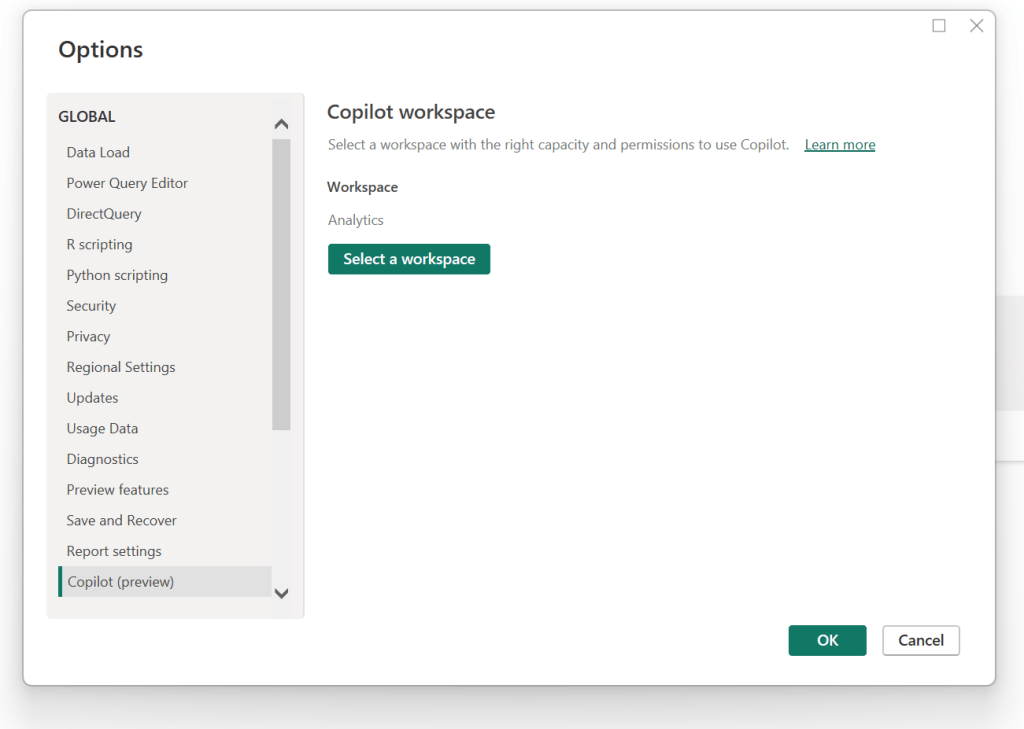
Also, as Copilot is still partially in preview, it’s always a good idea to check out the preview features section and activate Copilot’s preview functionalities if you’re interested in testing them.
Copilot should now be available in the service, or directly within Power BI Desktop.

It may have come to your attention that we didn’t need to enable additional Fabric workloads for the tenant. The reason is that Copilot for Power BI operates independently without requiring Fabric activation. Therefore, if you’re utilizing Power BI exclusively, you can take advantage of Copilot for Power BI as well.
With all this in place, you should be all set to get started! If you’re unsure where to begin, the best way is to start by reading the documentation to see what is supported and to understand the limitations.
In the upcoming posts, we will sail deeper into the myriad features of Copilot for Power BI, while also anchoring our journey with best practices and recommendations. Subscribe to join this expedition and stay abreast of the latest navigational insights !
 Asgaard Analytics
Leave a comment